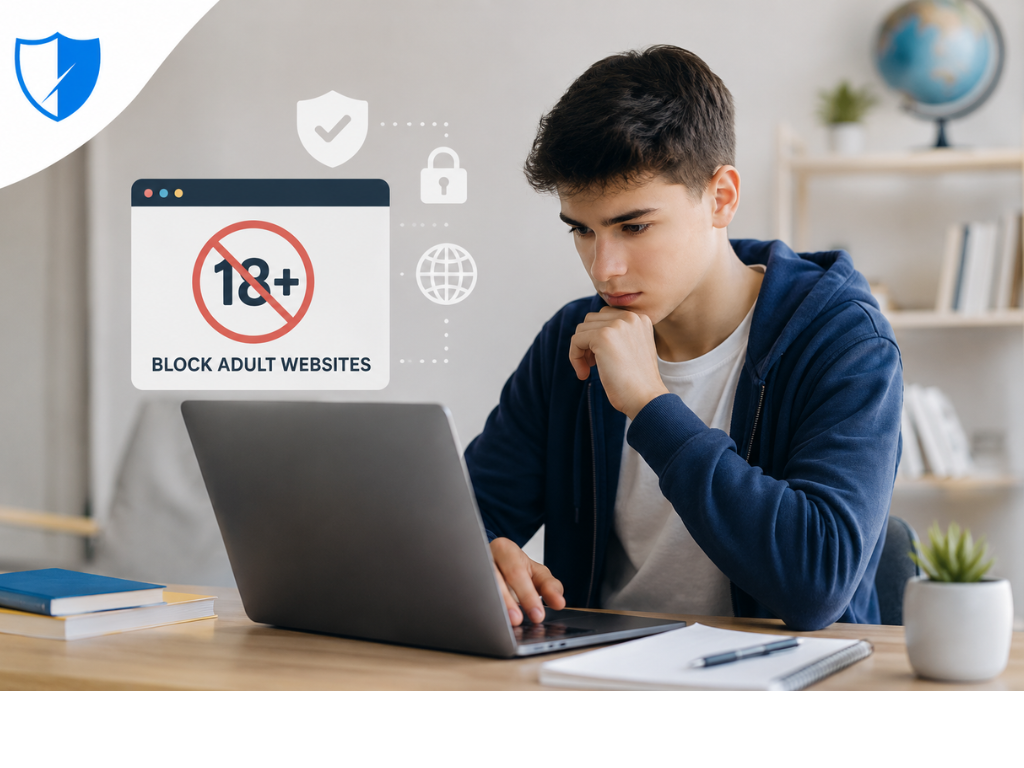
The Problem: Why Students Need Adult Website Blockers
You’re a student trying to research for a term paper. You open your browser, type in a search query, and scroll through results. Within seconds, you’re distracted by social media notifications, YouTube recommendations, and—most alarmingly—explicit content that appears unexpectedly in search results or pop-up ads.
For students, this exposure is more than just uncomfortable. Research from Common Sense Media shows that 47% of parents feel their child is “addicted” to their mobile devices, and 62% of parents whose children watch YouTube say their kids have seen inappropriate videos on the site . Students who use adult website blockers report better concentration, fewer distractions, and improved academic outcomes.
If you’re looking for the best adult website blocker for students, you’re not alone. Millions of parents, teachers, and students search for effective solutions every month. The good news is you don’t need expensive software or an IT professional. Powerful, completely free solutions work instantly and require minimal technical knowledge.
Looking for a Chrome-specific solution? Our How to Block Porn on Chrome Free guide provides detailed installation instructions. For understanding the underlying technology, see our Can AI Filter Explicit Images Online? article.
What You’ll Learn in This Guide
- Why students are particularly vulnerable to online distractions
- How the right blocker can improve academic focus
- Comparison of the top solutions for students
- Detailed reviews with pros, cons, and best use cases
- How to choose the right tool for different age groups
- School-grade enterprise solutions for educators
Why Students Need Protection: Key Statistics
Understanding the scale of the problem helps explain why blocking adult content matters:
How We Tested These Tools
Our team evaluated each tool using a standardized methodology:
| Criteria | What We Tested |
|---|---|
| Detection Accuracy | Effectiveness blocking known adult sites and catching new ones |
| False Positives | Whether legitimate educational sites were incorrectly blocked |
| Incognito Protection | Whether protection remains active in private browsing |
| SafeSearch Enforcement | Whether SafeSearch is automatically enabled and locked |
| Platform Support | Availability across Chrome, Android, iOS, Windows, Mac |
| Privacy Policy | What data is collected, stored, and shared |
| Ease of Setup | Installation time and configuration complexity |
Our Team: This guide was researched by digital safety experts with experience in cybersecurity, digital addiction recovery, and parental controls. All recommendations are based on independent research.
Comparison Table: Top 8 Adult Website Blockers for Students
Detailed Reviews: Top Solutions
1. BlockGuard: Best Free Student Protection
Overview
BlockGuard is the highest-rated free blocker on the Chrome Web Store. It offers complete real-time protection at zero cost, automatically blocking over 3 million adult websites.
How It Works
The extension uses filtering technology to detect and block adult content before it reaches your screen. It continuously analyzes websites, URLs, and keywords to identify explicit material.
Key Features:
- Long Sentence Protection — prevents impulsive disabling
- Browsing Insights — tracks habits to identify time-wasting sites
- Usage Limit Feature — set daily time limits for specific websites
- Cross-platform protection — Chrome, Android, and Desktop
Privacy
BlockGuard does not track or log browsing history.
| Pros | Cons |
|---|---|
| ✅ Completely free | ❌ Primarily Chrome-focused |
| ✅ AI-powered detection | ❌ Limited advanced features |
| ✅ SafeSearch enforcement | |
| ✅ Incognito protection | |
| ✅ Blocks Shorts, Reels, TikTok | |
| ✅ Privacy-focused |
Best For: Individual students seeking free, comprehensive protection
Platforms: Chrome, Android, Desktop
Pricing: Free forever
2. Web Filter for Chrome: Best for Schools
Overview
Provides comprehensive filtering with automatic adult content blocking and SafeSearch enforcement. Designed for parents, educators, and organizations .
Key Features:
- Instant web filtering for pornography and adult content
- Universal SafeSearch enforcement
- YouTube Restricted Mode
- Incognito mode filtering
- Premium: domain allowlist, custom blocklist, passcode protection
| Pros | Cons |
|---|---|
| ✅ Enterprise-grade | ❌ Free version limited |
| ✅ YouTube Restricted Mode | ❌ Premium requires subscription |
| ✅ Incognito filtering |
Best For: Schools, organizations, parents
Platforms: Chrome, Chromebooks
Pricing: Free/Premium
3. BlockNSFW: Best Open-Source Option
Overview
Open-source extension combining multiple detection methods. Available on Chrome and Firefox .
How It Works
Combines domain blocking, keyword filtering, content script filtering, and SafeSearch enforcement .
Key Features:
- Domain blocking with remote blocklist updates
- Multilingual adult-keyword coverage
- Reddit NSFW subreddit checks
- Image protection — option to scan and block explicit images
- Local processing — no data transmission
| Pros | Cons |
|---|---|
| ✅ Open-source (MIT) | ❌ Chrome/Firefox only |
| ✅ Community-driven | ❌ No mobile app |
| ✅ Multi-layer protection | |
| ✅ Transparent code |
Best For: Students wanting open-source transparency
Platforms: Chrome, Firefox, Edge
Pricing: Free (MIT License)
4. Focus Sessions: Best for Mac Students
Overview
Blocks applications and websites on Mac. Can be used as parental control or self-control tool.
Key Features:
- Password protection
- Cannot be disabled or closed
- Blocks websites across all browsers
- Locks any app
- Schedule blocking
- 400,000+ predefined domains
| Pros | Cons |
|---|---|
| ✅ Cannot be disabled | ❌ Mac only |
| ✅ Password protection | ❌ Paid after trial |
| ✅ 400,000+ domains | |
| ✅ Schedule blocking |
Best For: Mac-using students needing strong enforcement
Platforms: Mac only
Pricing: Free trial; from $2.99/month
5. Covenant Eyes: Best Accountability Tool
Overview
Focuses on monitoring and reporting rather than blocking. Captures screenshots and sends to accountability partner.
How It Works:
- Takes random screenshots across devices
- Uses AI to analyze for explicit content
- Flags suggestive material
- Sends reports to accountability partner
| Pros | Cons |
|---|---|
| ✅ Strong accountability | ❌ Very expensive ($184/year) |
| ✅ Ally partner system | ❌ Not real-time blocking |
| ✅ Web blocking | ❌ Inaccurate AI detection |
Best For: Students with accountability partners
Platforms: Android, iPhone, Mac, Windows
Pricing: $18/month ($184/year)
6. Canopy: Best AI Smart Shield
Overview
Uses AI to analyze images and text in real-time. Blurs or blocks explicit content while allowing normal browsing.
Key Features:
- Smart AI filter for websites and apps
- Sexting prevention
- App and screen time limits
- Location tracking
- Removal alerts
Note: Independent testing shows AI filter can be unstable and over-blocking is common.
| Pros | Cons |
|---|---|
| ✅ Cross-platform | ❌ Inconsistent AI filtering |
| ✅ App-level blocking | ❌ Expensive ($95-$120/year) |
| ✅ Real-time AI | ❌ Over-blocking issues |
Best For: Parents wanting AI filtering and app management
Platforms: Android, iPhone, Mac, Windows
Pricing: $9.99-$13.99/month
7. SPIN Safe Browser: Best for iOS/MDM Schools
Overview
Enterprise web browser for schools, designed for content blocking on iPad and iPhone. Deploy via MDM .
How It Works
Automatically blocks inappropriate content, pornography, adult websites, and unsafe search engines .
Key Features:
- MDM integration (Jamf, Hexnode)
- No private browsing
- SafeSearch enforcement
- Remote management
- CIPA compliance
- 50% educational discount
| Pros | Cons |
|---|---|
| ✅ MDM integration | ❌ iOS/iPadOS only |
| ✅ No private browsing | ❌ Paid solution |
| ✅ CIPA compliant | |
| ✅ Educational discount |
Best For: K-12 schools using iPad/iPhone
Platforms: iOS, iPadOS
Pricing: $22.99/device (one-time)
8. CleanBrowsing: Best DNS-Based School Filtering
Overview
DNS filtering designed for schools. Trusted by 10,000+ educational institutions worldwide.
How It Works
Filters at DNS level, protecting all devices on a network without installing software.
Key Features:
- 19+ pre-defined filters
- Pornography, malware, proxy/VPN blocking
- Academic fraud blocking
- Profiles for teachers vs students
- Activity monitoring dashboard
- Encrypted DNS support
- CIPA compliance
| Pros | Cons |
|---|---|
| ✅ Network-level filtering | ❌ No AI image analysis |
| ✅ CIPA compliant | ❌ School plan requires payment |
| ✅ 19+ filters | |
| ✅ Minimal IT overhead |
Best For: Schools wanting network-level DNS filtering
Platforms: All devices (DNS-based)
Pricing: Starting at $300/year
Who Should Use Which Tool
Expert Recommendations
“Using safe cyber practices on home and personal devices protects you and your family from cyber threats. Taking small steps every day to secure your devices can help prevent attacks like identity theft and malware.” — CISA
“Parental controls can support you in your efforts to keep your kids’ internet experiences safe, fun, and productive. They work best when used openly and honestly in partnership with your kids.” — Common Sense Media
“BlockNSFW is a powerful yet lightweight browser extension designed to keep your browsing safe, distraction-free, and family-friendly. It automatically blocks pornographic and adult websites before they load.” — Firefox Add-ons
“If you just want to limit what your kids can search for, your best option is to enable Google SafeSearch in whichever browser or browsers you use.” — Common Sense Media
Common Mistakes When Choosing a Student Blocker
Relying only on SafeSearch. SafeSearch only filters search results. You need a dedicated blocker that blocks adult websites directly .
Choosing tools without incognito protection. Many blockers don’t work in private browsing. Always verify incognito protection is enabled.
Ignoring app-level blocking. Adult content appears in social media apps, not just browsers.
Forgetting cross-platform coverage. Protection should follow students across devices.
Not checking privacy policies. Cloud-based solutions may upload content for analysis. Choose on-device AI for maximum privacy.
Frequently Asked Questions
What is the best adult website blocker for students?
BlockGuard offers comprehensive free protection with AI filtering and 3+ million sites blocked. For schools, Web Filter for Chrome and CleanBrowsing provide enterprise-level solutions.
Can I block adult websites on Chrome for my child?
Yes. Use BlockGuard extension for immediate protection, Google Family Link for activity management, and DNS filtering for network-wide coverage .
What’s the best open-source adult website blocker?
BlockNSFW is open-source with MIT license, offering multi-layer protection including domain blocking and keyword filtering .
Is there a free adult website blocker for students?
Yes. BlockGuard offers comprehensive free protection. BlockNSFW is open-source and free .
What are the best school-grade web filtering solutions?
- Web Filter for Chrome — Extension-based filtering for Chromebooks
- CleanBrowsing — DNS filtering starting at $300/year
- SPIN Safe Browser — iOS/MDM deployment
How do schools block adult content on Chromebooks?
Schools use extension-based filtering like Web Filter for Chrome which automatically blocks adult content and enforces SafeSearch .
Can students bypass adult website blockers?
Tech-savvy students may find workarounds. The most effective approach combines multiple layers: extension + DNS filtering + router settings + open conversations .
What is CIPA compliance?
The Children’s Internet Protection Act requires schools to block obscene content. Schools can achieve compliance with solutions like Web Filter for Chrome and CleanBrowsing .
Conclusion: Protect Students and Enhance Focus
The best adult website blocker for students depends on your specific needs:
For individual students seeking free protection, BlockGuard offers comprehensive AI filtering with 3+ million sites blocked, SafeSearch enforcement, and incognito protection—all at no cost.
For open-source transparency, BlockNSFW offers multi-layer protection with MIT license .
For K-12 schools, Web Filter for Chrome provides easy Chromebook deployment with automatic adult content blocking , and CleanBrowsing offers affordable DNS filtering.
Your Next Steps:
- Choose Your Solution
- Set Up Protection
- Test Your Protection
- Confirm adult sites are blocked
- Verify SafeSearch is working
- Have Conversations About Online Safety
Ready to get started?
👉 Install BlockGuard Chrome Extension for Free
👉 Download BlockGuard Android App
👉 Explore BlockGuard Desktop App
👉 Visit BlockGuard Blog for More Guides
Reviewed By
Digital Safety Research Team — Experts in online safety, content filtering, and student digital wellbeing
Experience: 5+ years researching online safety and content filtering
Article Reviewed: July 2026
External Authority Sources
- CISA — Cybersecurity & Infrastructure Security Agency — Official U.S. government guidance on cybersecurity
- Common Sense Media — Digital Citizenship Resources — Trusted nonprofit for kids’ online safety
- Google SafeSearch — Official Documentation — Official Google guidance
- Firefox Add-ons — BlockNSFW — Open-source adult content filter
Leave a Reply